No Shorts
Hide YouTube Shorts in Safari on iPhone, iPad and Mac. Keep the videos you choose. One purchase, no subscription.
One purchase. No subscription. See your local price on the App Store.

Screenshots
A closer look at the app in action.
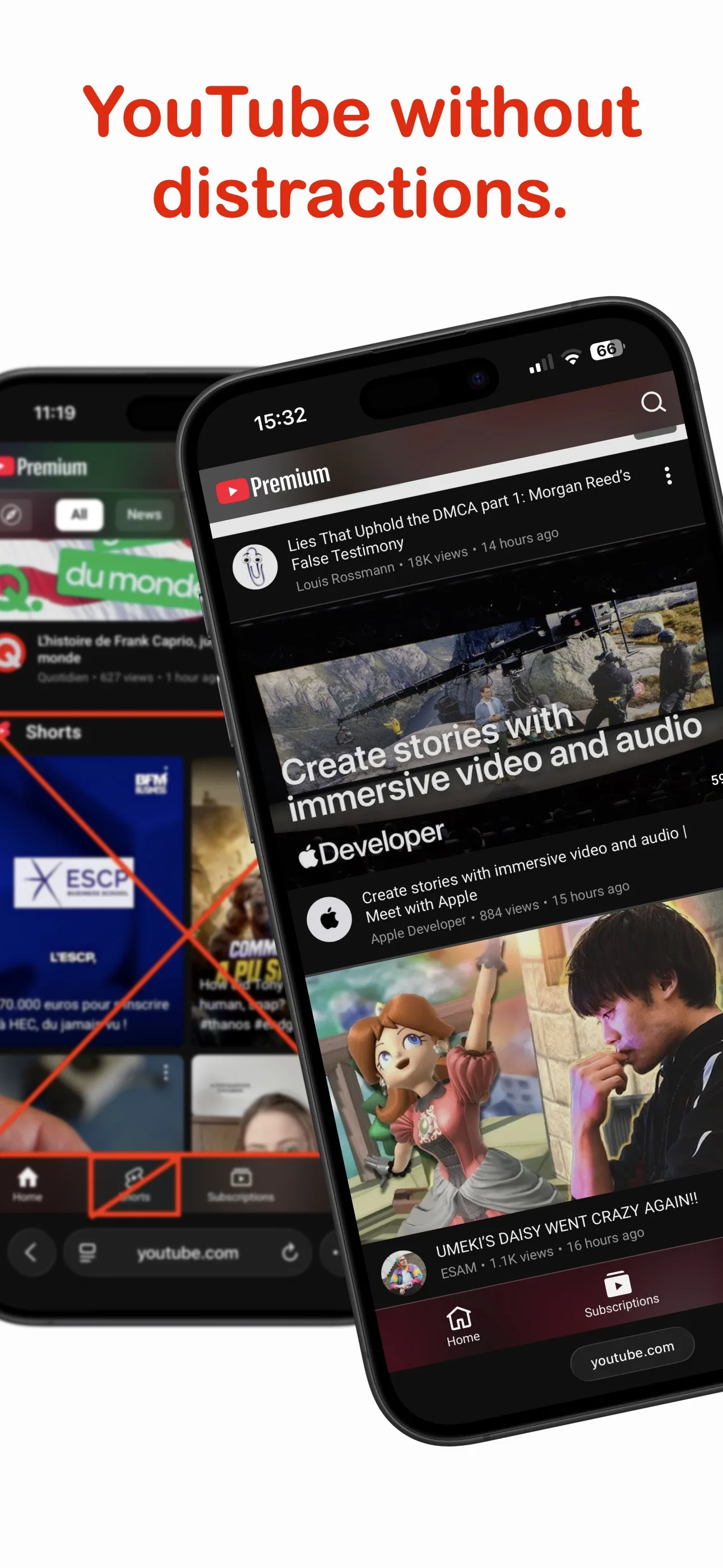 YouTube in Safari on iPhone before and after No Shorts removes Shorts distractions
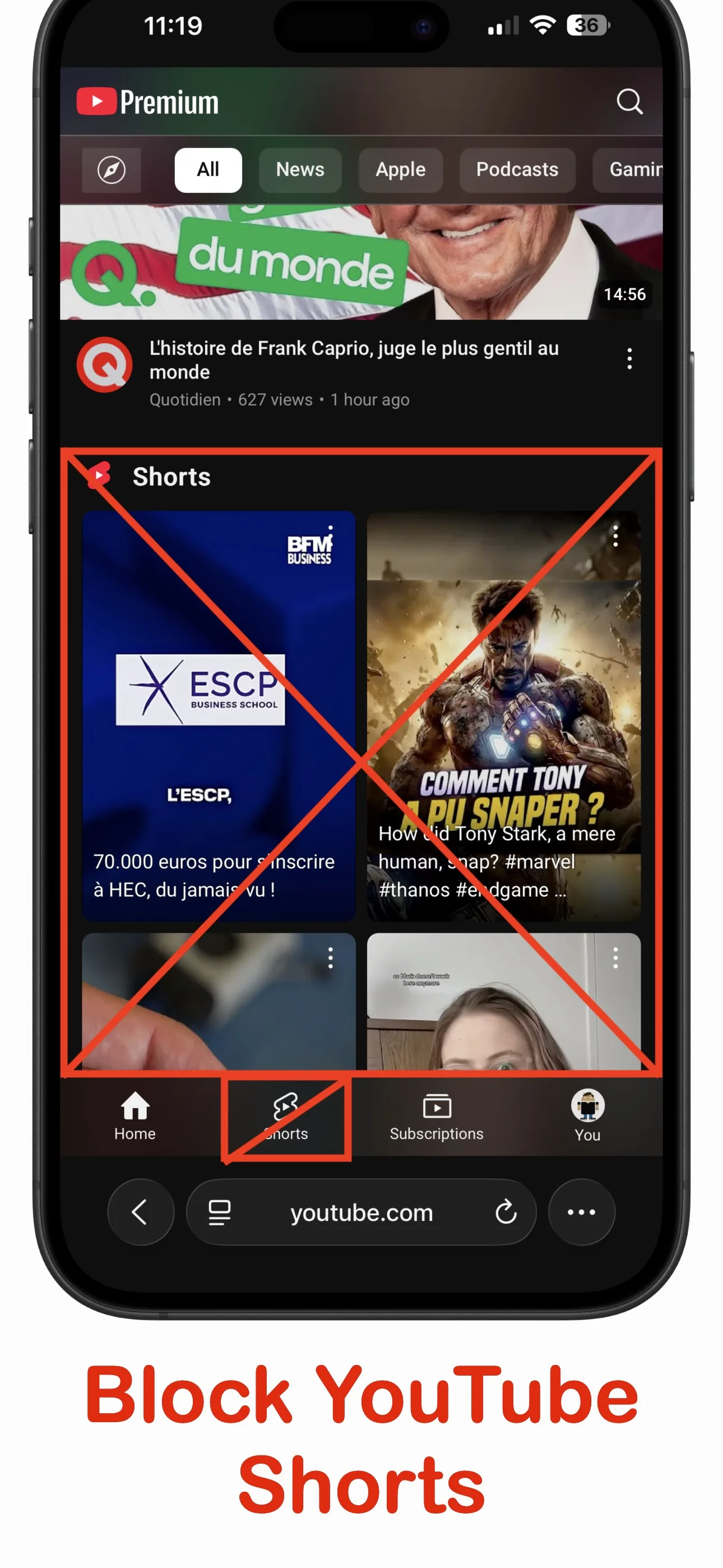 YouTube home page in Safari highlighting the Shorts shelf and tab blocked by No Shorts
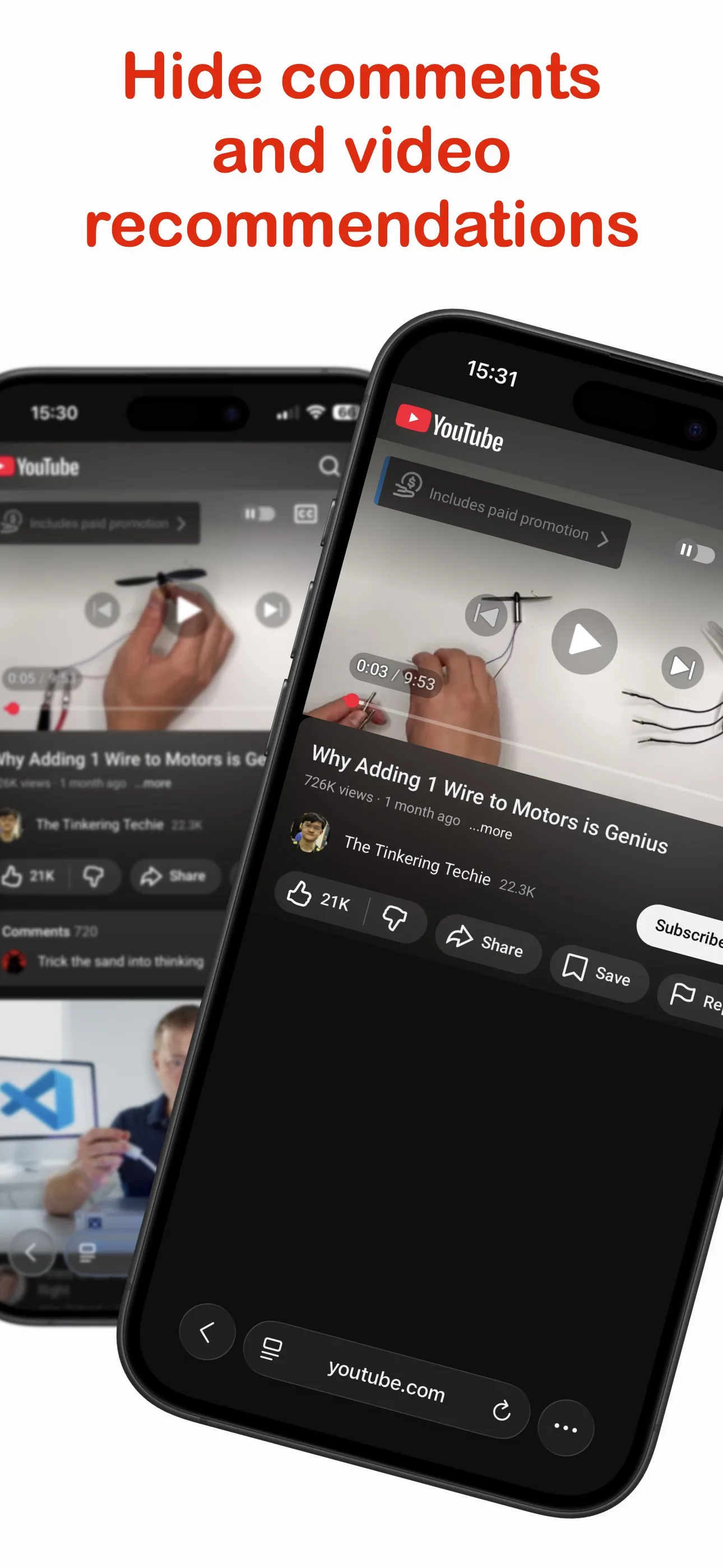 YouTube video page in Safari with comments and video recommendations hidden by No Shorts
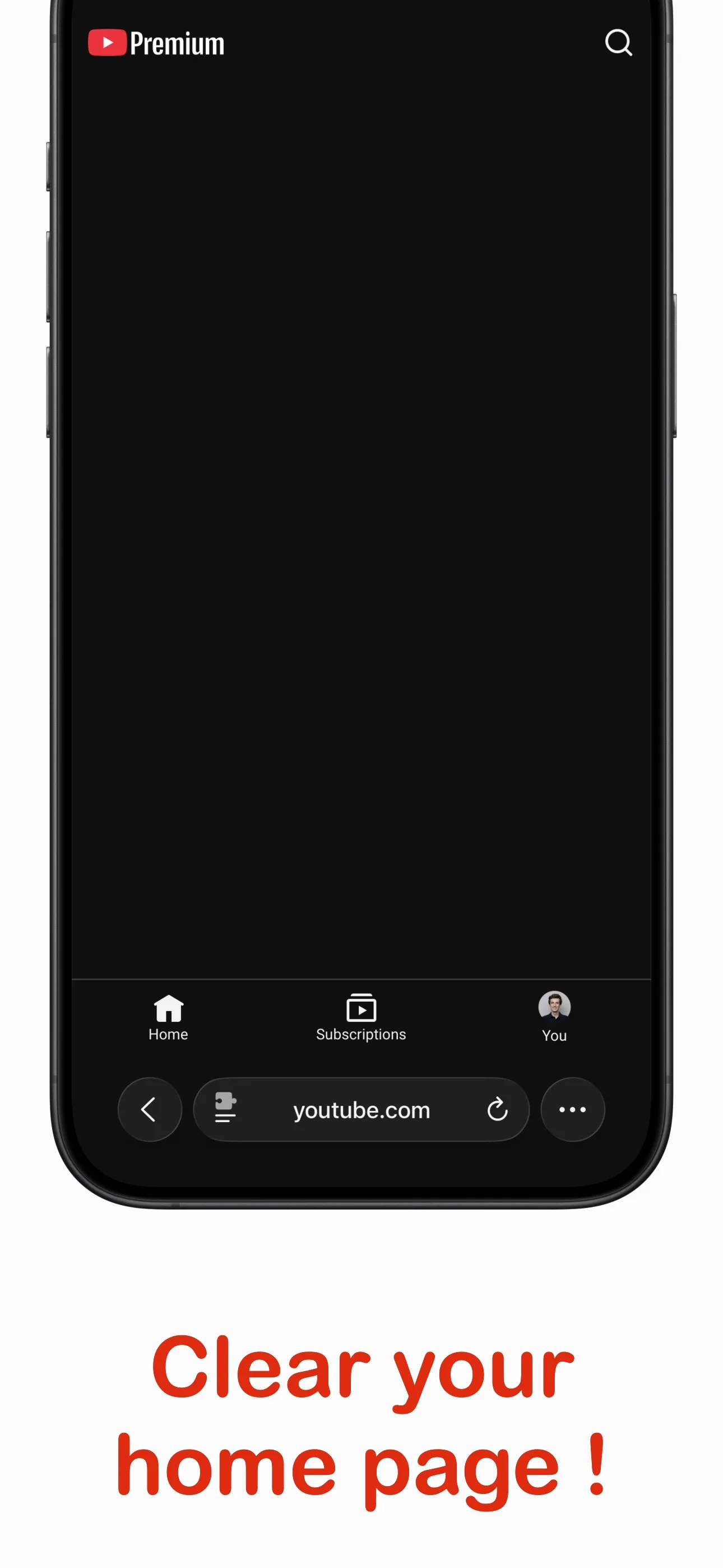 Minimal YouTube home page in Safari after No Shorts clears recommendations
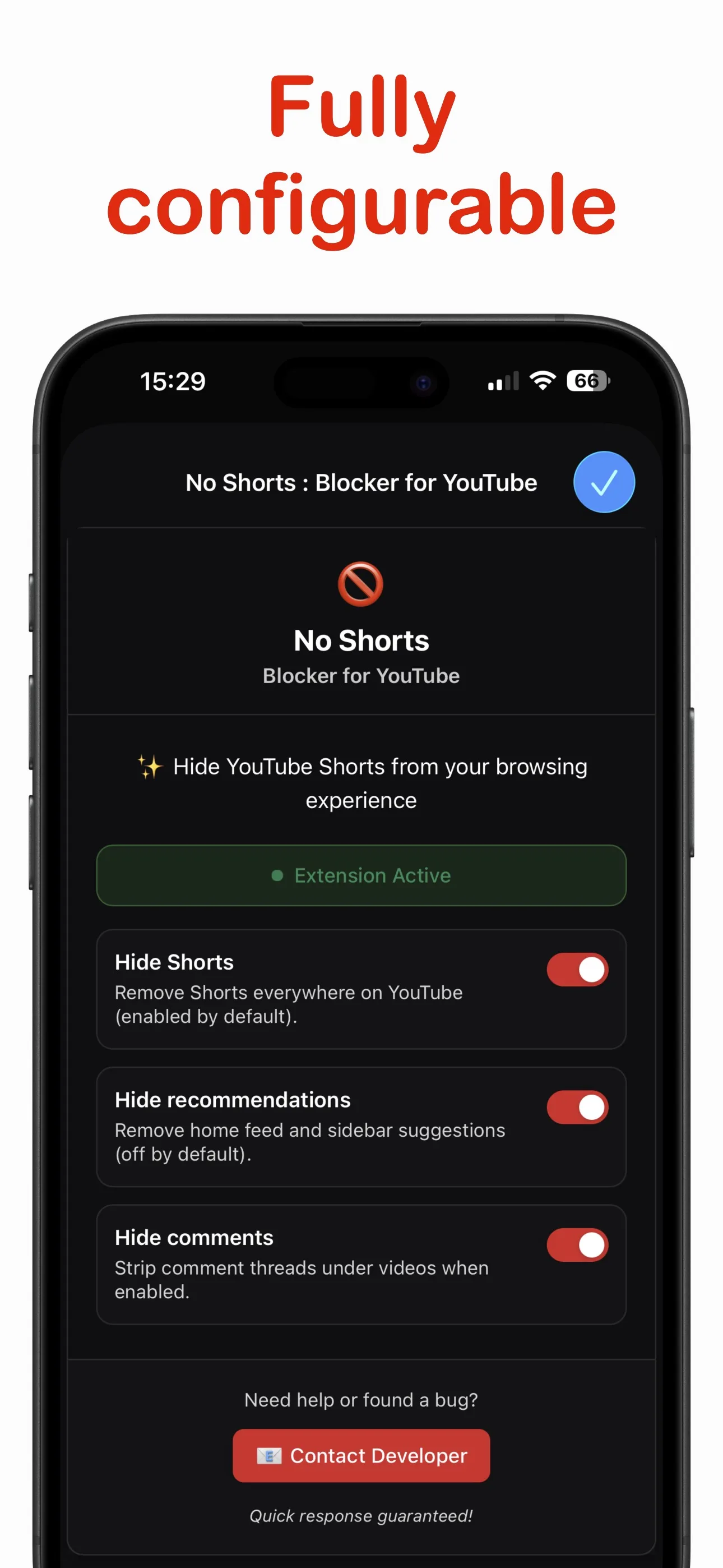 No Shorts settings on iPhone with controls for Shorts, recommendations, and comments
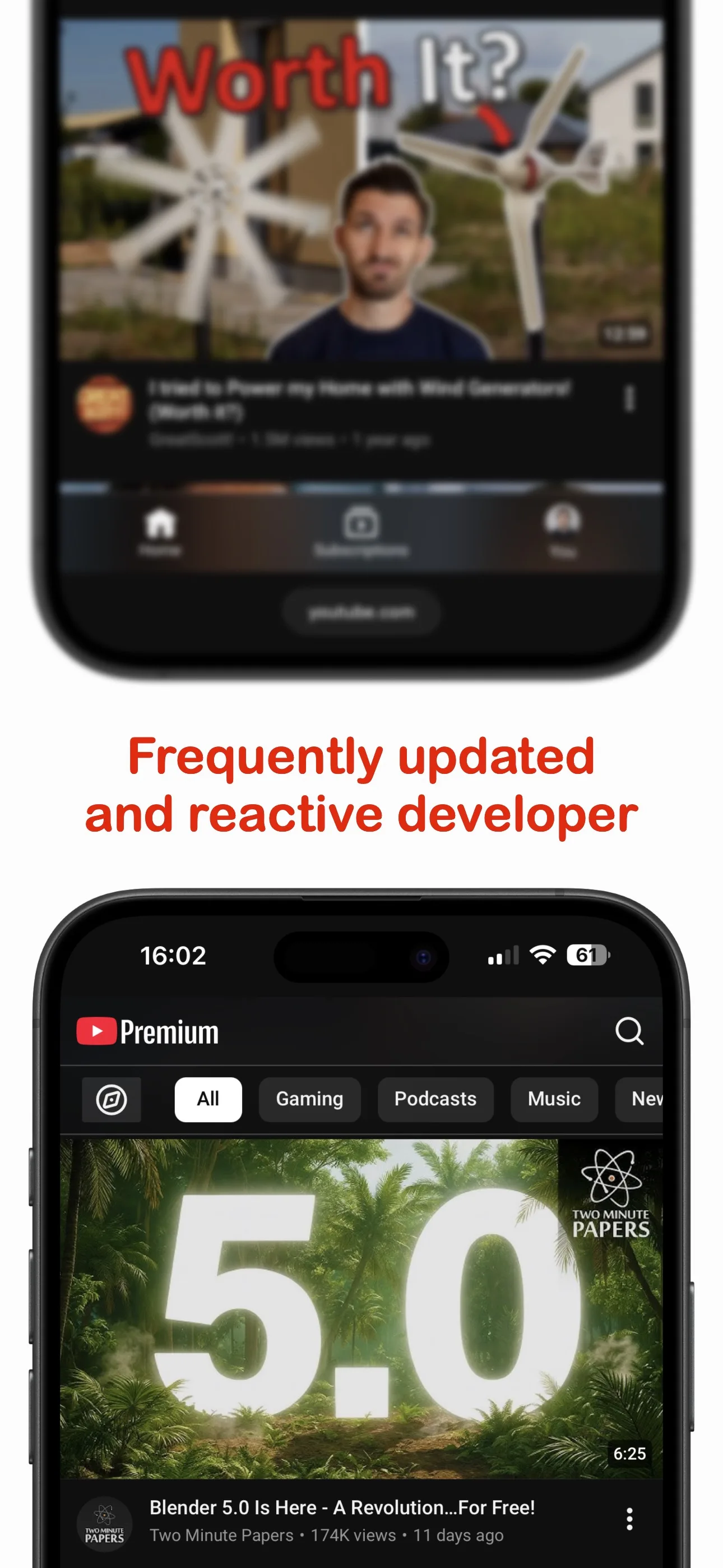 YouTube feed in Safari after No Shorts removes short-form distractions
Block YouTube Shorts in Safari and make room for videos you chose
No Shorts removes YouTube Shorts across Safari on iPhone, iPad, Mac, and Apple Vision Pro so you can browse distraction-free.
To block Shorts, use YouTube in Safari (the web version). Safari extensions can filter websites, but they can’t modify content inside the official YouTube app.
Sticking to the web version makes it easier to avoid endless reels and spend less time on social networks—while still watching the videos you actually chose.
Block the Shorts tab, home feed carousels, and endless reels whenever you open YouTube in Safari on your iPhone or iPad.
Built for privacy-first Apple users: No Shorts runs locally, syncs preferences with iCloud, and keeps Safari fast.
Highlights
- Blocks Shorts buttons, shelves, and recommendations on YouTube in Safari across iPhone, iPad, and Mac.
- Keeps you focused on long-form videos by hiding Shorts while you browse or watch.
- Syncs settings with iCloud and runs locally with no analytics, trackers, or ads.
How to install No Shorts
Follow these steps to activate the extension everywhere you use Safari.
- 1Download No Shorts from the App Store on your iPhone, iPad, Mac, or Apple Vision Pro.
- 2Open Safari. On iPhone or iPad, go to Settings → Safari → Extensions and toggle No Shorts. On Mac, open Safari → Settings → Extensions and tick No Shorts.
- 3On Apple Vision Pro, go to Settings → Apps → Safari → Extensions and enable No Shorts for Safari.
- 4If Safari doesn’t prompt for website access, open Safari → Settings → Extensions → No Shorts → Manage Websites and switch youtube.com to Allow.
- 5Return to YouTube and refresh the page. If Shorts still appear, tap the "AA" or puzzle icon in Safari, choose No Shorts, and make sure blocking is enabled for youtube.com.
Frequently Asked Questions
How to block YouTube Shorts on Safari?
You can block YouTube Shorts on Safari by installing the No Shorts extension from the App Store. Once installed, enable it in Safari Settings, grant it permission for youtube.com, and it will automatically hide the Shorts tab, buttons, and reels.
Can I hide YouTube Shorts on iPhone?
Yes. While the official YouTube app doesn't allow disabling Shorts completely, you can hide them by using YouTube in the Safari browser with the No Shorts extension installed. It works seamlessly on iPhone.
How to disable YouTube Shorts on Mac?
To disable YouTube Shorts on your Mac, download No Shorts from the Mac App Store, activate it in Safari Extensions, and refresh YouTube. All Shorts carousels and links will be hidden.
Does it block Shorts in the official YouTube app?
No. No Shorts works on the YouTube website in Safari. It cannot change the official YouTube app. Open YouTube in Safari after enabling the extension and allowing it on youtube.com.
Is there a subscription?
No. This Safari extension is a one-time purchase. The optional bundle includes No Shorts, No Reel and No Algorithm For X. BrowseKind Plus is separate and is not included.
Related focus apps
More independent tools for a calmer Safari and a more intentional feed.
No Reel
Instagram Reels blocker
Hide Reels in Instagram on Safari. Keep the browsing you choose, with a one-time purchase and no subscription.

BrowseKind
Social without the scroll
Use YouTube, Instagram, and X in one calm iPhone or Android browser with local filters for short videos, discovery, and recommendations.